
Independent home tech support · Not NBN Co, not an ISP
The new computer is still in its box and the printer has never worked. Home tech support sets it all up in one visit.
The tablet gets email and the phone doesn't, the notebook has eleven passwords and none of them work, and nobody wants to be the one who loses the photos. One home tech support visit works through the whole list, the wifi included, and shows you how each thing works. $250 inc. GST service call, first hour on site and travel up to 40 km included.
Book a technicianContact us Play the 1 min SECURE A COM film (opens in a new tab)


Trusted by 1,000+ businesses
-
Greg Fisher
★★★★★Jason was incredible / patient with my lack of tech savvy and supportive in talking with my carrier for me. Once the problem was diagnosed he fixed it in minutes. Love the on line booking. Turned up exactly on time. Very grateful
Read more Show less
-
Marty Lawson
★★★★★Jason identified an issue we'd had for some time on our network and hadn't been able to resolve. He also fixed up some other issues we had. He did this in a professional and friendly manner. Would definitely recommend.
Read more Show less
-
Tom Hargreaves
★★★★★Punctual, considerate, and thorough in identifying problems in my existing home networks and providing solutions.
-
u no
★★★★★Jason is friendly, patient and easy to talk to. He is competent and willing to address all our concerns and questions. Highly recommend. From Anthony H.
Read more Show less
-
Andrew Katramados
★★★★★All I can say is if you need a job done correctly, call Jason at Secure A Com. As I am working from home like many these days, and in preparation for the NBN cut over in my area I needed some connection issues and advice on the best way to set my home up to enable me to work and also have my young family connected with all their wifi needs. Jason provided professional and unbiased advice, whilst also finding the most cost effective solution for me. I highly recommend Secure A Com and Jason - 100%
Read more Show less
-
Melissa Weir
★★★★★My Mum and Dad were over the moon with the work Jason did at their home today. The NBN set up wasn't ideal for their telephone requirements, and he sorted it out quickly and efficiently. Jason is friendly, polite, patient and helpful. 100% recommendation.
Read more Show less
-
Nikki Zongas
★★★★★Jason was AMAZING!! We had so many issues - telephones, NBN, internet & International streaming systems. He FIXED EVERYTHING! He was so kind and patient with my elderly parents. I would recommend Jason and Secure A Com to anyone with tech issues. You are wasting your time & money using anyone else. Thanks Jason.
Read more Show less
-
Janny Williams
★★★★★Hello there, just had technician Jason Kearney visit me regarding many frustrating weeks of internet drop/outs. It was very refreshing for me (mature 77year old lady) to see Customer service has not disappeared after all!! Jason was courteous and very down to earth but most of all understanding of my frustration with the drop outs etc. He was prompt (early in fact) and was helpful above and beyond. He sorted out my mess of cables, replaced faulty ones and best of all and more importantly fixed the problem!! Wish I had been able to book Jason 6 weeks ago when all my drop outs started. It would have saved many weeks of frustration. If you need any assistance choosing a technician you will not find a more qualified and personable person than Jason. Thanks Jason, keep up the good work, regards Joan Williams, Meadowbank.
Read more Show less
Sound familiar?
One technician for the connection and everything plugged into it
There's a drawer of chargers, a notebook of passwords, and a list of things that would take someone who knows how about a morning.
Most help stops at the computer or at the internet. We do both, in one visit, then you do each thing yourself once before we go.
Read moreShow less
The new laptop is still in its box because nobody wants to be the one who loses the photos. The printer worked once, in the shop. The tablet gets email and the phone does not. There is a drawer of chargers, a notebook of passwords, and a growing list of things that would take someone who knows how about a morning.
Most help with this stops at one edge or the other: the computer on one side, the internet connection on the other, and the gap between them left to you. We do both, in one visit: the connection coming into the house, the wifi that carries it around, and every device that hangs off it. Then you are shown how each thing works, and you do it yourself once before we go. Televisions and streaming have their own page, smart TV setup. If the trouble is plainly the internet itself, start at internet technician. We come to homes across Sydney and further out; past the distance the service call includes, the extra travel is charged, and the rates are in our terms and conditions.
Free advice
Before you book: what to check first
A little preparation makes the visit shorter, and one or two of these fix the problem outright.
Keep this list handy
Get all seven checks as a one-page PDF before the technician arrives.
Send me the free guide- Write the whole list down. Every device and every annoyance, however small. The visit is planned around the list, and the thing that is not on it is the thing that gets missed.
- Find the passwords. The wifi password, usually on a sticker on the router, and the ones for your email and your Apple, Google or Microsoft account. If you cannot find one, say so when you book.
- Leave anything new in its box. Leads, discs and the little card with the product key are easy to lose once the packaging is open. We would rather unpack it with you.
- Turn it off and on again, properly. The device and the modem, at the wall, for a full minute. It is a cliché because it works, and it costs nothing to try first.
- Check whether it is the internet. If nothing in the house will load a page, the problem is the connection, not the computer, and that is a different visit with the same person.
- Know what you cannot afford to lose. Photos, documents, a business’s records. If it is only on one device, tell us, so it is copied somewhere safe before anything else is changed.
- Booking for a parent? Be there, or be on the phone. Mostly for passwords and accounts at the start. After that, the showing is done with them.
Recognise it?
What you need help with, and what you end up with
A new computer, phone or tablet that needs setting up
It's still boxed because the photos and contacts are on the old one, and nobody wants to lose them. Setting up is the easy half; moving everything across is the half that matters.
Usually points to: the new device set up, with your email, photos and contacts moved across and checked.
Read moreShow less
It was a present, or the old one finally died, and the new one has been sitting in its box because nobody is sure where to start. The photos, the contacts and the email are all on the old one, and the thought of losing them is the reason it has not been touched.
Setting up is the easy half. Bringing everything across from the old device, and making sure it arrived, is the half that matters.
What you end up with. The new device unboxed, updated, on the wifi and signed in, with your email, photos and contacts moved across and checked with you before the old one is put away.
Something that used to work has stopped
The printer won't print, the tablet won't send email, the computer takes ten minutes to start. Some turn out to be the wifi, which is why it helps to test both.
Usually points to: each problem traced to the device or the connection, and fixed or plainly explained.
Read moreShow less
The printer will not print. The email will not send from the tablet but still works on the phone. The computer takes ten minutes to start. None of it is dramatic, all of it is in the way, and each one has been lived with for months.
Some of these turn out to be the internet connection or the wifi rather than the device, which is why it helps to have someone who can test both.
What you end up with. Each problem traced to its real cause, the connection or the device, and either fixed in the visit or explained plainly if the device has had its day.
Passwords, accounts and things you cannot get back into
The email wants a code sent to a phone from two phones ago. It's slow work, done with you, and the accounts stay yours the whole way.
Usually points to: you back in your own accounts, with the passwords kept in one place.
Read moreShow less
The email account wants a code sent to a phone number from two phones ago. There is a notebook with eleven passwords in it and none of them is the right one. A new phone has asked for an account password nobody remembers setting.
This is slow work and it is done with you, not for you. The accounts are yours and you stay in charge of them the whole way.
What you end up with. You back in your own accounts, the passwords kept in one place you can get to, and the recovery details brought up to date so it does not happen again.
Pop-ups, strange messages, or a worry that it is a scam
A window says the computer is infected and to ring a number, or texts keep arriving about a parcel. Stop, don't click, and have someone look at the device itself.
Usually points to: the device checked and cleaned up, with a short list of what to watch for.
Read moreShow less
A window appeared saying the computer is infected and to ring a number. Texts keep arriving about a parcel. The browser opens pages nobody asked for. You are not sure whether something has got in or whether it is only trying to.
The useful thing is to stop, not to click, and to have someone look at the actual device in front of them. Nobody who is genuine rings you first.
What you end up with. The device checked and cleaned up, the updates and backups switched on, and a short written list of what to look for next time, in plain words.
The usual suspects
Why home tech gets stuck
Very little of this is a broken machine. It is nearly always one of a few ordinary snags.
- It was never finished being set up.
Switched on, skipped through, and the updates, email and backup left waiting.
Read moreShow less
Switched on, skipped through and left, with the updates, the email and the backup all still waiting.
- The password is lost.
Or it's known, and the code goes to a number that no longer exists.
Read moreShow less
Or it is known, and the code to confirm it goes to a phone number that no longer exists.
- Everything is still on the old device.
The new one works; it's just empty.
Read moreShow less
The new one works; it is just empty.
- The wifi does not reach it.
A printer in the back room drops off the network and looks faulty.
Read moreShow less
A printer in the back room or a tablet in the bedroom that drops off the network and looks faulty.
- Two things were set up by two different people.
Each works alone, and they've never been made to talk to each other.
Read moreShow less
Each works alone, and they have never been made to talk to each other.
- It is years behind on updates.
Slow, nagging, and no longer able to run what it used to.
Read moreShow less
Slow, nagging, and no longer able to run the things it used to.
- Something unwanted got installed.
Toolbars, pop-ups, a program that arrived with another program.
Read moreShow less
Toolbars, pop-ups, a program that arrived with another program.
- Nobody ever showed how it works.
Often the real one, and the easiest to fix.
Read moreShow less
Often the real one, and the easiest to fix.
New computer?
Computer setup at home, from the box to the first email
Unpacked, updated, on the wifi, your email tested with a message in and out, and your programs signed in. Then the old computer's documents and photos are copied across and checked with you. Licences stay in your name.
Read moreShow less
A computer setup is everything between the sealed carton and a machine you can sit down and use. It is unpacked and connected with its screen, keyboard, mouse and printer. The first-run steps are done properly rather than skipped: your account, the updates it has been waiting for, and protection switched on. Then it joins the wifi, your email is added and tested with a message in and a message out, and the programs you use are installed and signed in.
After that comes the old computer. Documents, photos and bookmarks are copied across and checked with you, because a setup that leaves ten years of photos behind is not finished. Software licences and subscriptions are yours to buy and stay in your name; we will tell you which ones you actually need and which you can do without. The last step is the same as on every job here: you use it yourself while we are still in the room.
Broken screen?
Setup and help only: what we do not repair
We don't repair hardware: no screens, parts, batteries or data recovery, and no remote support. If a device has a hardware fault you're told straight away, and the visit goes on what can be sorted.
Read moreShow less
We do not repair hardware. No cracked screens, no replacement parts, no batteries, and no recovering files from a drive that has failed. Those need a workshop, spare parts and tools we do not carry, and pretending otherwise would waste your money.
What we do is the part a workshop does not: come to the house, get what you already own working together, and explain it. If a device turns out to have a hardware fault, you are told straight away, with what it is and whether it is worth fixing, so the rest of the visit goes on the things that can be sorted. We also do not offer remote support, and we do not set up myGov or banking for you: we will sit beside you while you do it on your own account.
How it works
Home tech support: what we actually do
Four steps, in the same order every time. The visit ends when you have used each thing yourself, not when it has merely been made to work.
-

Start with your list.
Everything you want done, in your order of importance, read through together before anything is switched on. It sets how the time is spent, and it means the thing that matters most to you is done first rather than last.
-
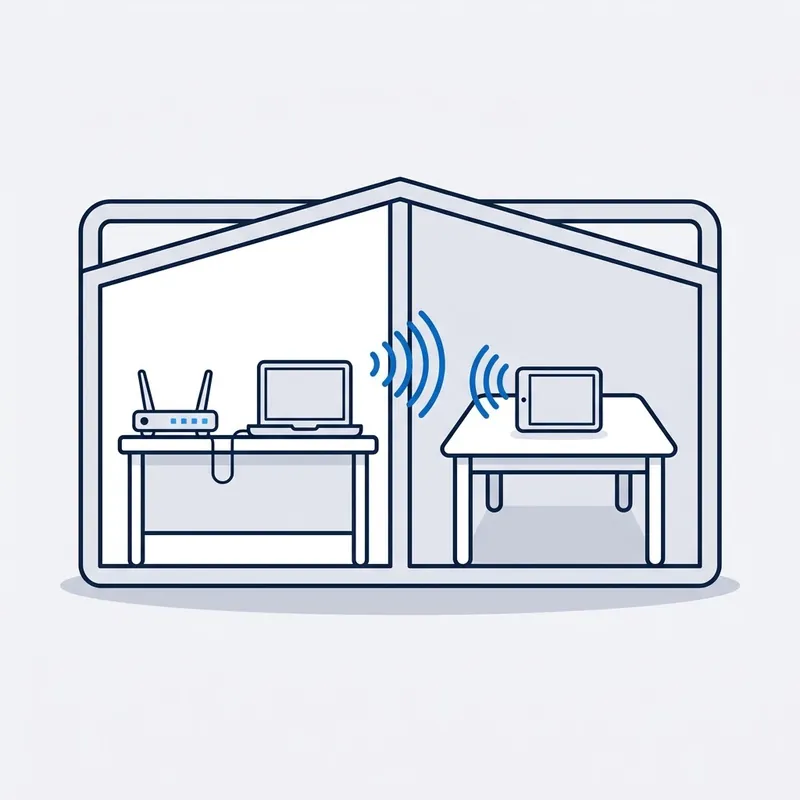
Check the connection underneath.
The internet and the wifi are tested before any device is blamed, because a printer that drops off the network is often a wifi problem wearing a printer's clothes. If the fault is in the line or the cabling, that is the work on our internet technician page, and it is the same person.
-
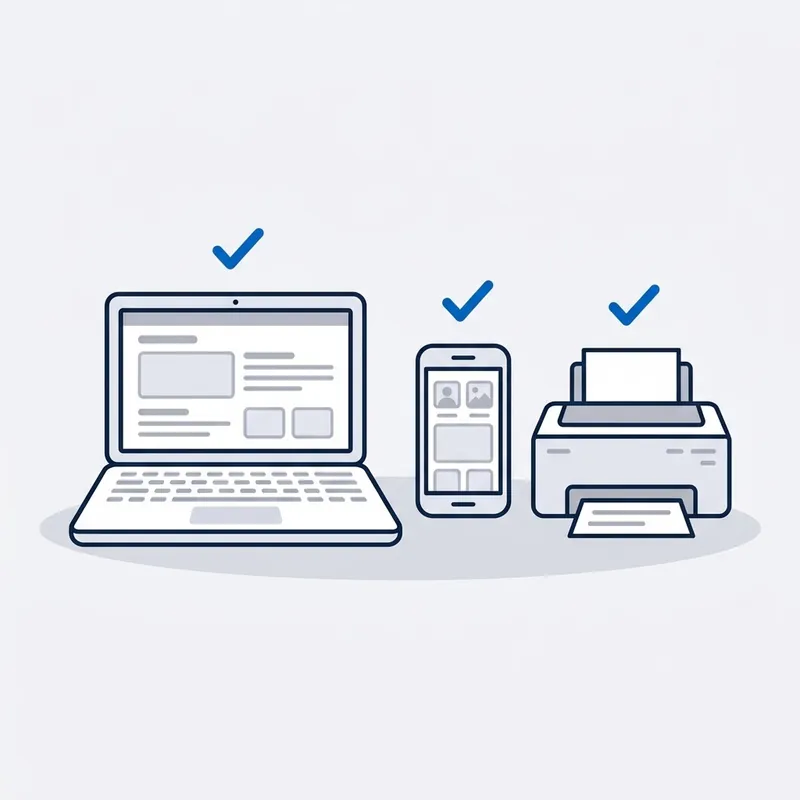
Set up and fix, one thing at a time.
Each device is updated, connected, signed in and tested before the next one is started, so nothing is left half done if the time runs out. You enter your own passwords. Anything that needs a licence or a subscription is your decision, and you are told before it comes up.
-

Show you, then watch you do it.
You send the email, print the page and find the photos yourself while we're still there, and what changed is left in writing.
Read moreShow less
Sending an email, printing a page, finding the photos, joining a video call: you do each one yourself while we are still there. No jargon and no rushing. What was changed, and where the passwords now live, is left with you in writing.


Written by customers on Google. None are paid for, and every word here is theirs.
Read all reviews on Google › (opens in a new tab) Leave a review (opens in a new tab)
Reviews
What people say after the job.
“I needed help setting up my new computer and extending my wifi signal all through my home. Jason from SECURE A COM showed up on time and completed all the tasks I needed fast, and at a good price.”
A real job from the field

Windsor, NSW · FTTP · Filmed on site, 5 min
A couple in their eighties had paid for internet for six months and had none.
Windsor. They'd been passed between two providers and nobody had come to look. The fibre NBN box has more than one data port, and only one is switched on for a service. The router was in the wrong one. We moved the cable, and the connection was up in about two minutes.
Read moreShow less
Windsor, a couple in their eighties with no internet for six months. They had been paying for the connection the whole time, and had been passed between two providers without anyone coming to look.
The fibre NBN box on the wall has more than one data port, and only one of them is switched on for a service. The router was plugged into the wrong one. We moved the cable to the active port and the connection came up in about two minutes.
Nothing was faulty and nothing needed replacing. It needed someone in the room.
Price
How much does home tech support cost?
$250 inc. GST
What's included
- First hour on site
- Travel up to 40 km
- Estimate before extra time
- Parts priced up front
Free Spaces account with every job, if you want one. What's Spaces?
Extra, only if you need it: more time on site, travel past 40 km, parts.
It's the service call, and it pays for the visit, not a fixed list. Bring the whole list and we work through it in your order. Setup and help only: we don't repair hardware.
Read moreShow less
Past the first hour, our hourly rate applies, and you are told before it starts.
We are a specialised service, so we may not be local to you. If you are outside Sydney or more than 40 km from our office, we can still come to you, but the extra travel means an extra travel charge. All travel charges are set out in our terms and conditions.
Setup and help are charged by time, not quoted. Give us the whole list when you book, every device and every account, so the visit is planned for all of it and nothing is left half done.
What you get in writing
A short written note of what was set up, what was changed and where your passwords are now kept, left with you at no charge. If the visit finds a fault in the internet connection itself, the fault reports in our pricing apply.
Trusted on site by
Commercial fault and cabling work, done by the same technician who comes to your house.









Your options
What is on your list, what to have ready, and what a visit leaves behind
| What to have ready | What the visit covers | What it leaves you with | |
|---|---|---|---|
| A new computer or laptop | The machine in its box, the old one with its charger, and your email and account passwords. | Unpack, connect, update, switch on protection, add email, install your programs, and copy your files across. | A computer you have used yourself, with everything from the old one on it and checked. |
| A printer that will not print | The printer, its ink, and the wifi password. | Put it on the network properly, add it to each device that prints, and print from every one of them. | Printing from the computer, the tablet and the phone, and a wifi signal that reaches it. |
| A new phone or tablet | Both devices, charged, and the password for your Apple or Google account. | Move contacts, photos, messages and apps across, set up email, and check the backup is running. | The new device ready to use, and the old one safe to wipe or pass on. |
| Passwords and accounts | Whatever you have: the notebook, old phone numbers, the email address you signed up with. | Work through each account's own recovery steps with you, and put the passwords in one safe place. | Your own way back into every account, with you still the only person who knows the passwords. |
| Pop-ups, scams and a safety check | The device as it is. Do not click anything or ring any number on the screen. | Scan and clean it, remove what should not be there, and switch on updates and backups. | A clean device and a short written list of what to watch for. |
SourcesHide sources
Sources: Scamwatch's published guidance on remote-access scams, for the advice never to act on an unexpected call or pop-up; each account provider's own recovery steps, which are what is followed on the day. Our own fees and reports are in our terms and conditions.
Whoever your provider is, the answer is the same.













Questions
Frequently asked questions
Something not covered? Call 02 9188 1577 and ask, or send it through the contact form and you get the answer in writing.
What can you help with?
Setting up and sorting out the things a household uses every day: computers and laptops, printers, email, phones and tablets, moving everything to a new device, passwords, photo backup, clean-up after a scam or a virus scare, and parental controls. And the internet connection and wifi underneath them, which is where a good share of these problems start.
Do you repair computers?
No. We set up, connect, clean up and explain. We do not replace screens, fit parts or recover data from a failed drive. If a device has a hardware fault we will tell you so plainly, rather than spend your time on something that needs a repair shop or a replacement.
How much does home tech support cost?
It is the service call set out on the card at the top of this page and again where the costs are explained: the first hour on site with travel included up to a set distance, then time after that. Nothing is quoted, because it is charged by time. Tell us the whole list when you book and we will say honestly how long it is likely to take.
Can you do several things in one visit?
Yes, and it is the best way to use the visit. The service call is paid once, however many devices are on the list, so a new laptop, the printer, the tablet and the passwords in one booking costs less than four separate ones. Put everything on the list, in order of what matters most.
Do you offer remote support?
No. We come to your home and work on the device in front of both of us, where you can see what is being done. We will never ring you out of the blue to say something is wrong with your computer, and neither will anyone else who is genuine. A call like that is a scam.
I am booking for my mum or dad. How does that work?
It works well. Tell us what they use and what is frustrating them. It helps if you can be there or on the phone at the start, mainly for passwords and accounts. They are shown everything themselves, at their own pace, because a setup only you understand is not much use to them.
Will you need my passwords?
You will need them; we would rather not know them. You type them in yourself. For banking and government accounts such as myGov, we show you how to use your own account and never sign in as you. If a password is lost, we go through the account's own recovery steps together.
Can you move everything from my old computer or phone to the new one?
Usually, yes: documents, photos, contacts, email and bookmarks. Have the old device, its charger and its password to hand. How long it takes depends on how much there is, and it is the commonest reason a setup runs past the first hour. If the old device will not start at all, that is data recovery, which we do not do.
Is my internet the problem, or my computer?
That is the first thing we find out. A laptop plugged straight into the modem either works properly or it does not, and that one test separates the two. It is also the reason to book someone who works on both: if it turns out to be the connection, the visit carries on rather than ending with a referral.
Dig deeper
Guides for this job
5 guides
- 14Nov

Guide
Connected Without Internet? WiFi Works, Internet Doesn't
Connected without internet means your phone is on your home WiFi but the internet into the house is out. The printer still prints. What to check first.
Read the guide › - 21Nov
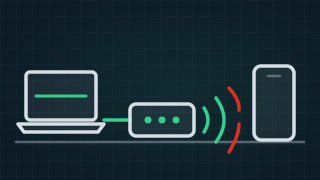
Guide
Why Is My Internet Connection Unstable? Causes and Fixes
Why is your internet unstable? One cable test tells WiFi from wiring from the network, then the causes of each, at night or when it rains, and the fixes.
Read the guide › - 04Oct
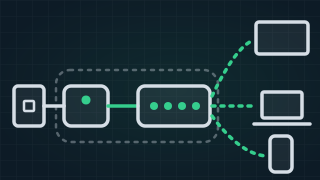
Guide
Modem vs Router: What Is the Difference, and Do I Need Both?
Modem vs router: are they the same? A modem connects your home to the internet, a router shares it and makes the WiFi. Which box is which on the NBN.
Read the guide › - 12Aug

Guide
Is My Router Hacked? A Home Network Case in Monterey
Is your router hacked? Which signs have ordinary explanations, which are worth acting on, and what to do, from a home network case in Monterey.
Read the guide › - 16Dec
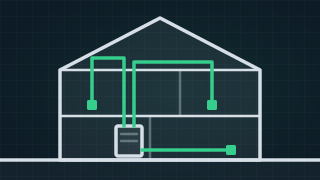
Guide
How to Set Up a Wired Home Network with Ethernet
How to set up a wired home network: plan the hub, route Ethernet cable in a unit or a house, and add Ethernet ports to each room that needs one.
Read the guide ›
Home Tech Support
Trusted by 1,000+ businesses